
Alternative Entry Flow : Pay by Link
Pay By Link is an alternative checkout flow where a merchant creates a payment link via the TransFi API or Dashboard, receives a hosted URL, and shares it directly with their customer.
The customer opens the link and completes the payment through the TransFi-hosted checkout widget.
Create Payment Link
You can generate a payment link in two ways:
- Option A: Create from Dashboard
- Option B: Create via API
Option A: Create from Dashboard
Generate payment links manually without writing any code.
-
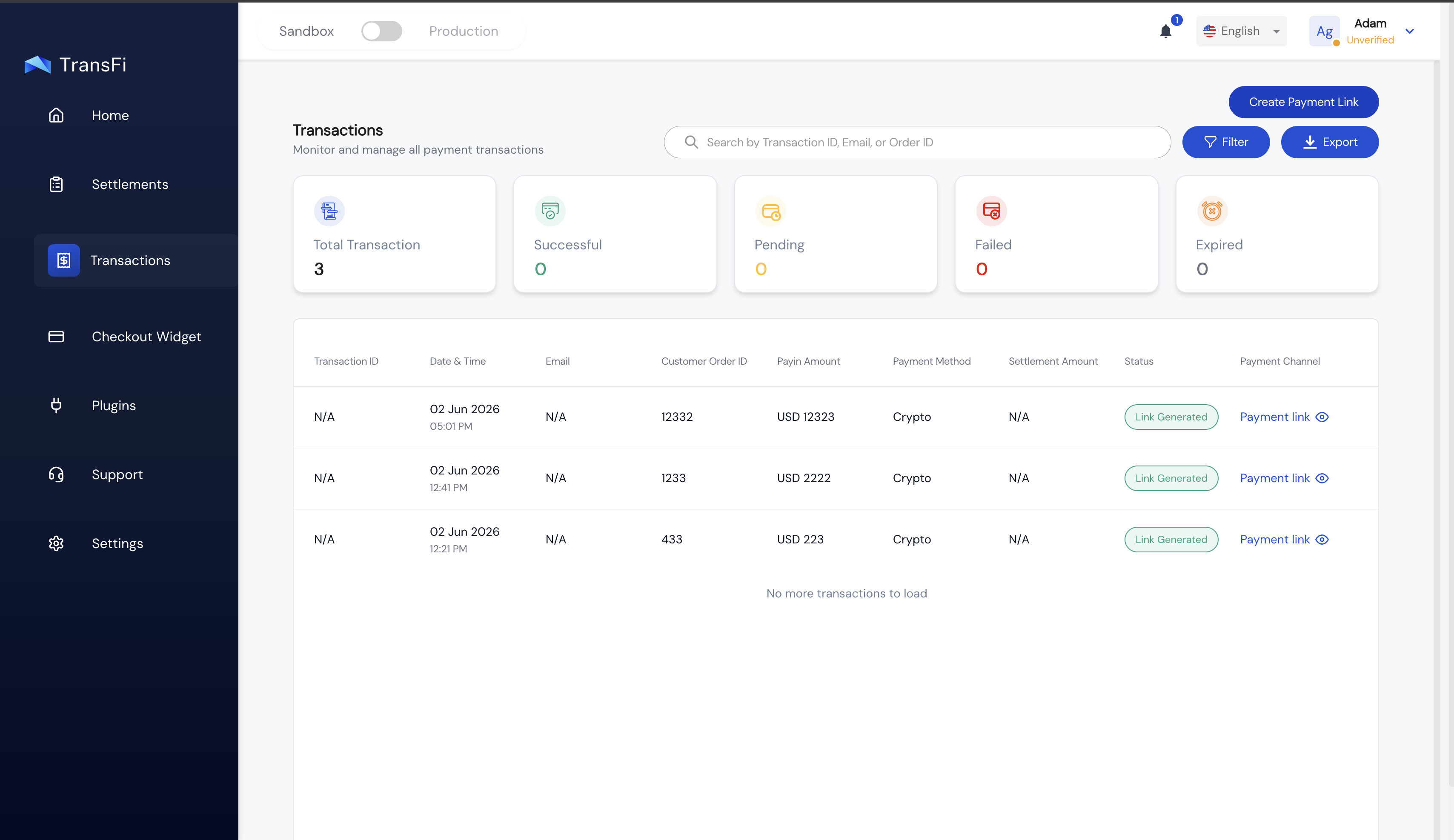
Navigate to the Transactions page in your TransFi Dashboard.
-
Click the Create Payment Link button on the top right
-
Fill in the required product and customer details.
-
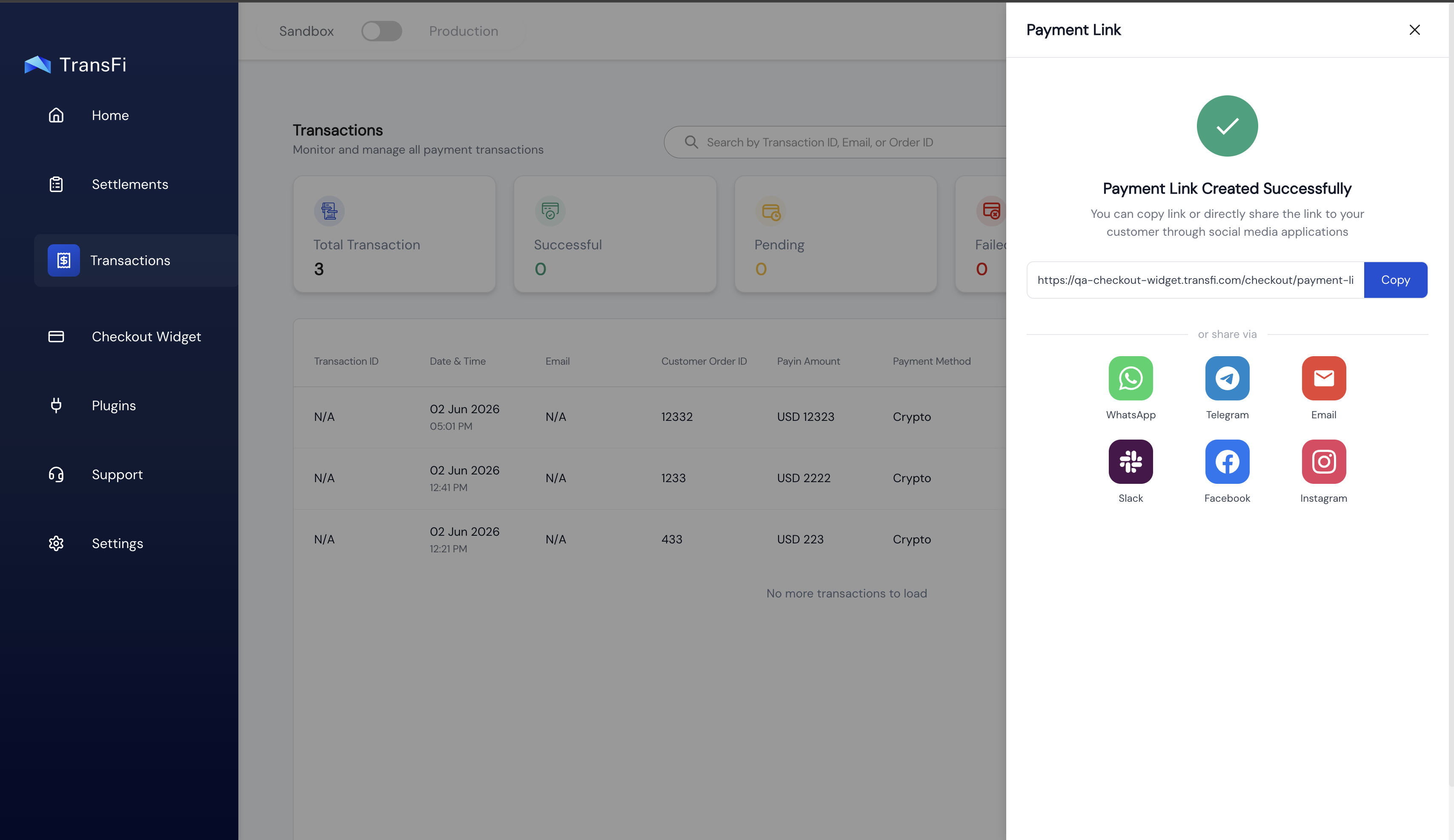
Copy the generated URL from the success modal and share it with your customer via email, SMS, or chat.
Option B: Create via API
Programmatically generate payment links to share across your own communication channels.
You can check the API details here: Create Payment Invoice API
Endpoint
POST /checkout/payment-link/invoiceHeaders
Content-Type: application/json
x-api-key: pk_sandbox_<your_public_key>
x-timestamp: <unix_timestamp_ms>
x-signature: <hmac_signature>
X-Api-Version: v1
Request Body
{
  "paymentLinkId": "69c39577e1a0100cf92c3406",
  "amount": "100",
  "currency": "EUR",
  "productDetails": {
    "name": "Premium Product",
    "description": "High quality product",
    "imageUrl": "https://example.com/product-image.jpg"
  },
  "individual": {
    "firstName": "John",
    "lastName": "Doe",
    "email": "[email protected]",
    "phone": "9876543210",
    "phoneCode": "+1",
    "country": "US"
  },
  "inpss": {
    "city": "Mountain View",
    "state": "California",
    "street": "1600 Amphitheatre Parkway",
    "postalCode": "94043"
  },
  "dob": "17-01-1998",
  "paymentCode": "pipay",
  "channel": "payment link",
  "successRedirectUrl": "https://your-app.com/payment-success",
  "failureRedirectUrl": "https://your-app.com/payment-failure",
  "customerOrderId": "order-12345",
  "lng": "en"
}
Response
{
	"success": true,
  "data": {
    "success": true,
    "paymentUrl": "https://qa:checkout-widget-transfi.com/checkout/payment-link/6a0100000000000000000"
  }
}
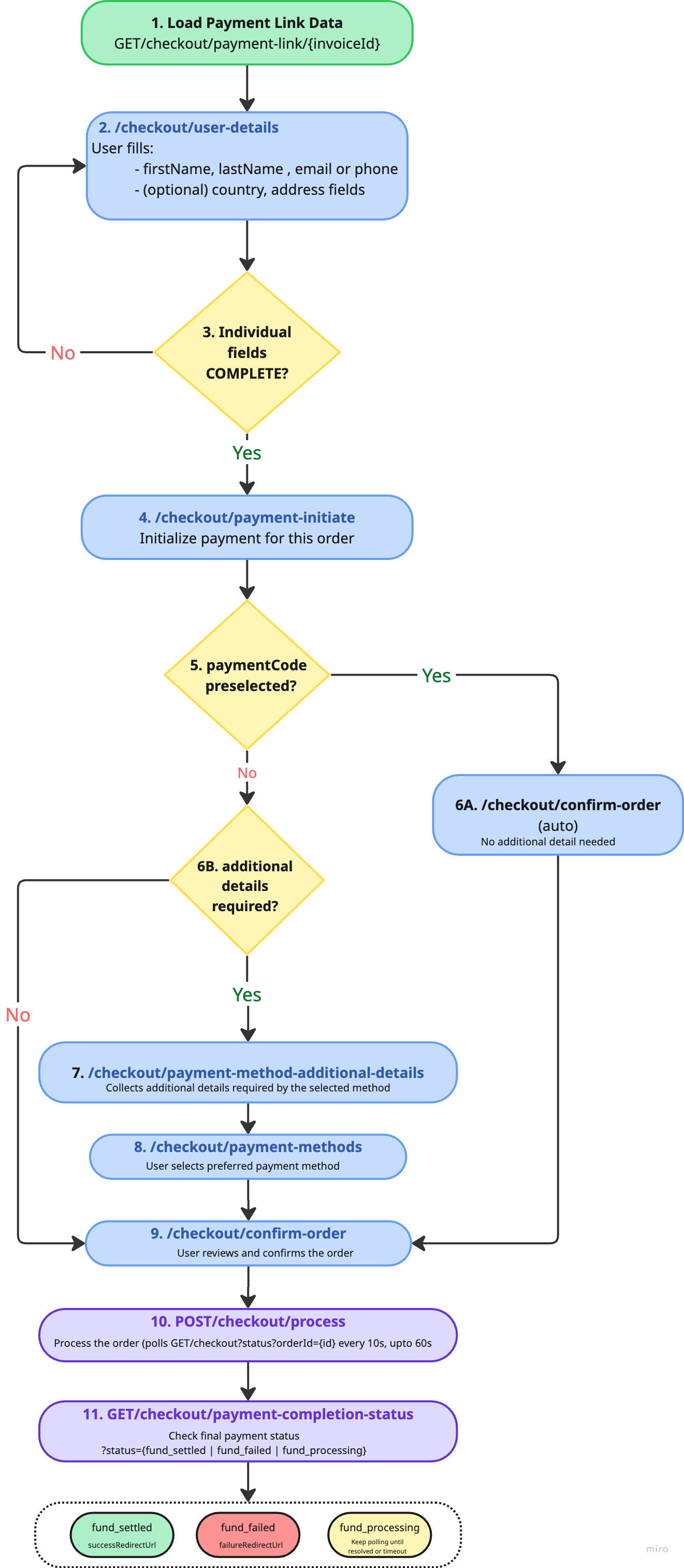
Understanding the flow
What the Customer Sees
When the customer clicks the paymentUrl, the checkout widget loads dynamically based on the data provided.
The widget utilizes a smart branching flow to minimize friction for users.
Complete Customer Data
If the individual object is fully populated, the User Details screen is skipped, and the customer goes straight to the payment initiation screen.
Incomplete Customer Data
If required fields (like Name or Email/Phone) are missing, the customer is prompted to fill out the User Details form first.
Pre-selected Payment Methods
If a valid paymentCode is passed and the pre-filled data satisfies the required fields for that specific method, the Additional Details page is bypassed automatically.
Page Descriptions
| Route | Component | Shown When |
|---|---|---|
| /checkout/payment-link/[invoiceId] | — (orchestrator) | Always (logic only) |
| /checkout/user-details | UserDetailsFormContent | individual fields are incomplete or missing |
| /checkout/payment-initiate | ProductCheckoutPage | After user details are ready |
| /checkout/payment-methods | PaymentMethodsContent | No paymentCode pre-selected |
| /checkout/payment-method-additional-details | PaymentMethodAdditionalDetailsContent | Method requires extra fields |
| /checkout/confirm-order | ConfirmOrderContent | Before final payment submission |
| /checkout/payment-processing | PaymentProcessingContent | After order submitted |
| /checkout/payment-completion-status | PaymentCompletionContent | Final result page |
After you have the payment URL, continue to Step 4 →
Updated 4 months ago