
Step 3: Create a Transaction
A transaction represents a payment attempt. You can create a transaction by hitting the TransFi Checkout API.
When you create a transaction:
- You hit the TransFi Checkout API and provide the transaction details
- You receive a redirection URL in response
- This link opens the TransFi hosted page which has the Checkout Widget
You can check the API details here: Create Payment Invoice API
The optional details of the individual object are needed by TransFi for creating a transaction. If you pass these details, the user won't be asked again in checkout. Otherwise, the user will first need to fill in these information on the TransFi hosted page.
[!TIP] Pre-filling customer details improves conversion and speeds up checkout.
Where to Get the API Keys?
In both Sandbox and Production, you will get the API keys in the Settings page. For the TransFi Checkout API you will need a Public key and a Secret key. You can get these from:
Dashboard → Settings
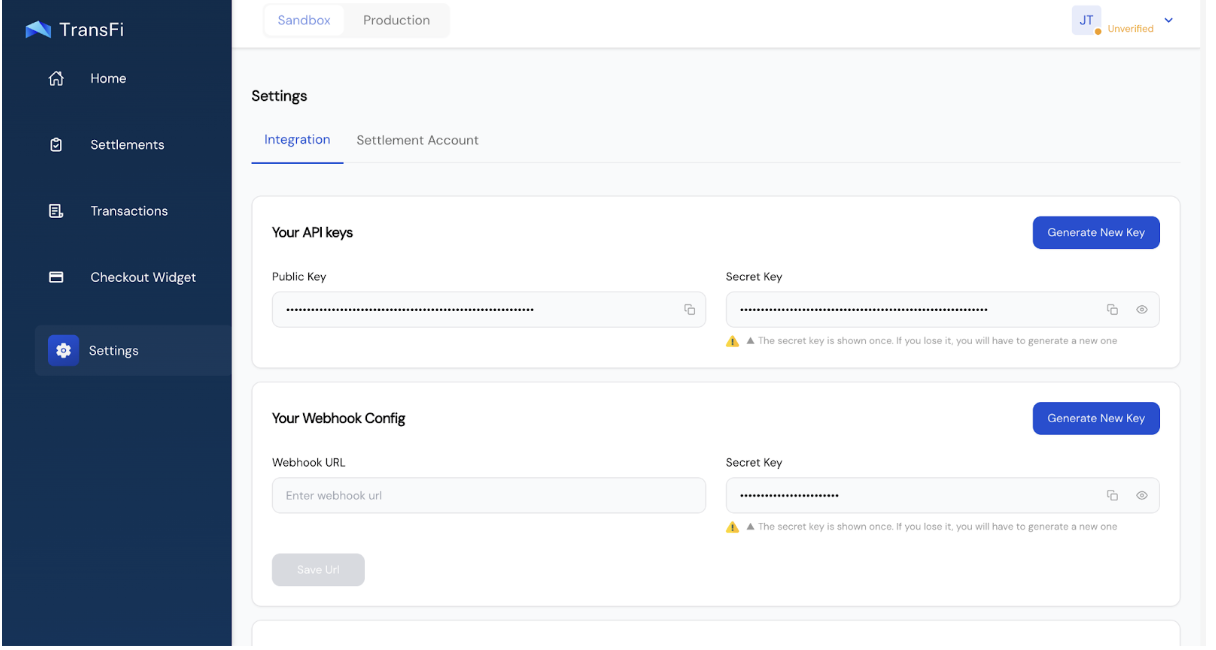
[!NOTE] To generate the keys, you will need to authenticate with 2FA that you used while logging in to the dashboard.
Updated 4 months ago